
Payroll errors often start with messy time records, not big systems. A single missed hour or unclear entry in Excel can shift totals and slow down approvals.
That is why a structured timesheet template matters more than it seems. It turns scattered work hours into clean, readable data that is easy to verify and process.
For daily shifts, weekly payroll, or project tracking, the right Excel format helps bring order to routine time logging and keeps every pay cycle aligned and consistent.
What Is a Timesheet Template in Excel?
An Excel timesheet template is a ready-made spreadsheet for recording work hours, so employees, freelancers, and teams have a set place to log time without building a sheet from scratch.
Most versions include fields for employee name, date, start and end time, break time, regular hours, overtime, total hours, and approval.
The job it does is straightforward: capture time, calculate totals, and make payroll easier to check.
Different users lean on it in different ways:
- Small businesses use it to manage hourly staff
- Freelancers and contractors use it to track billable hours
- Agencies use it to record project time
- Payroll teams use it to review attendance before wages go out
A good timesheet template Excel file also helps you:
- Track daily or weekly work hours
- Calculate totals automatically with formulas
- Prepare payroll with fewer manual checks
- Keep attendance records in one file
- Print, share, or edit the sheet whenever you need to
It’s a practical choice when you want a simple time-tracking system that stays easy to read and easy to update.
Why Use an Excel Timesheet Template?
A ready-made timesheet template Excel file saves you from building rows, columns, and formulas on a blank sheet. That head start is the main draw, but it isn’t the only one:
- Adjust columns, formulas, and pay periods to fit your setup
- Switch easily between daily, weekly, biweekly, and monthly cycles
- Cut counting errors once formulas are set correctly
- Reuse the same file every pay cycle for consistent records
With a clear layout, a manager can see at a glance who worked, when, how long, and what still needs sign-off, making each pay cycle faster to review.
Best Timesheet Template Excel Formats
No single layout fits every team. The best timesheet template Excel format depends on your pay cycle, work setup, and how much detail you check before payment.
Here are formats worth considering:
1. Daily Timesheet Template Excel
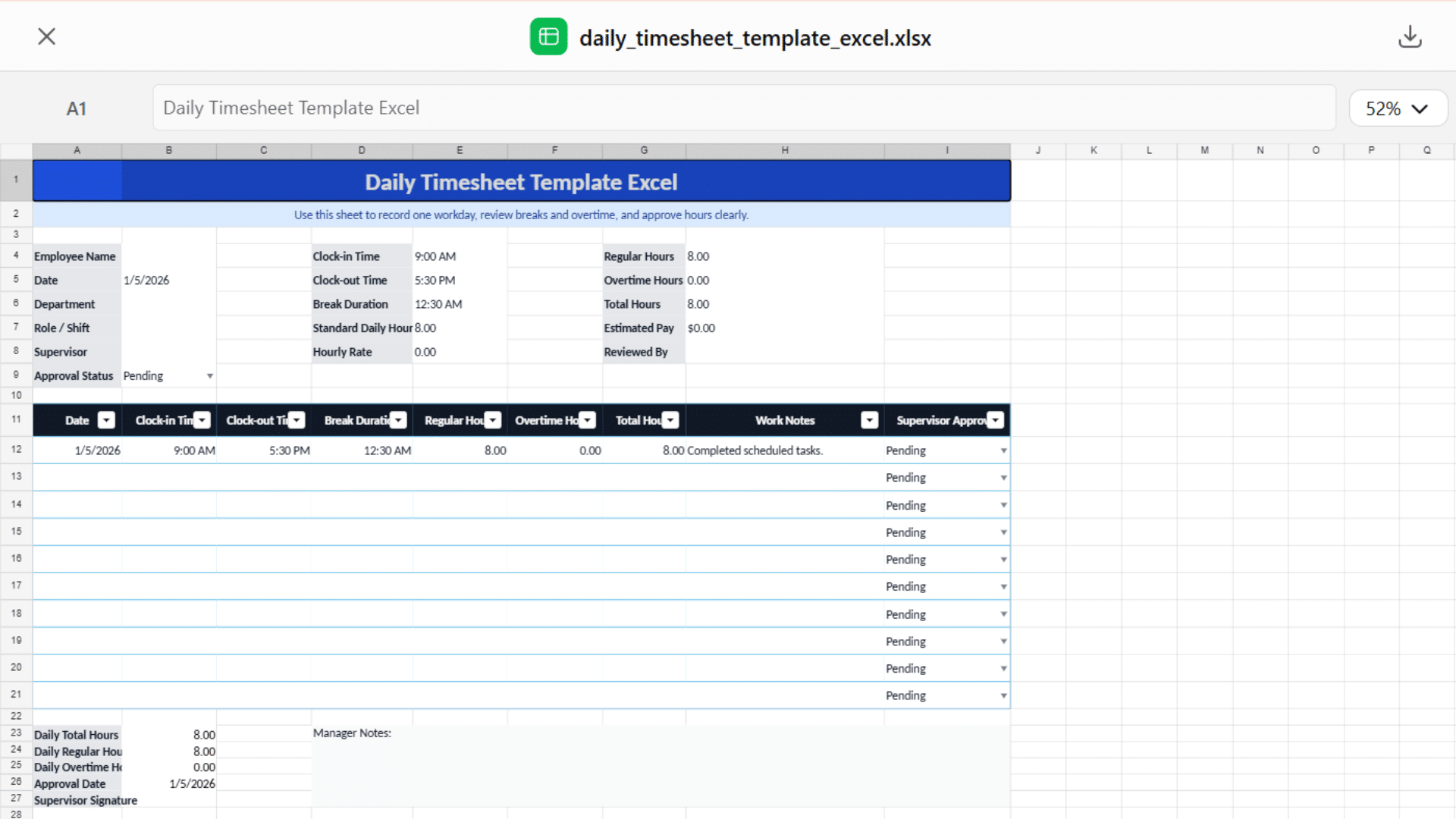
A daily timesheet template Excel file gives a close view of one workday.
It works well when shifts change often or when managers need to check breaks, overtime, and work notes before approving hours.
This format usually includes:
- Employee name
- Date
- Clock-in time
- Clock-out time
- Break duration
- Regular hours
- Overtime hours
- Notes
- Supervisor approval
A daily format is a strong fit for restaurants, retail stores, field service teams, support desks, and workplaces with changing shifts.
It keeps each day separate, so missing entries and unusual hours are easier to catch.
2. Weekly Timesheet Template Excel
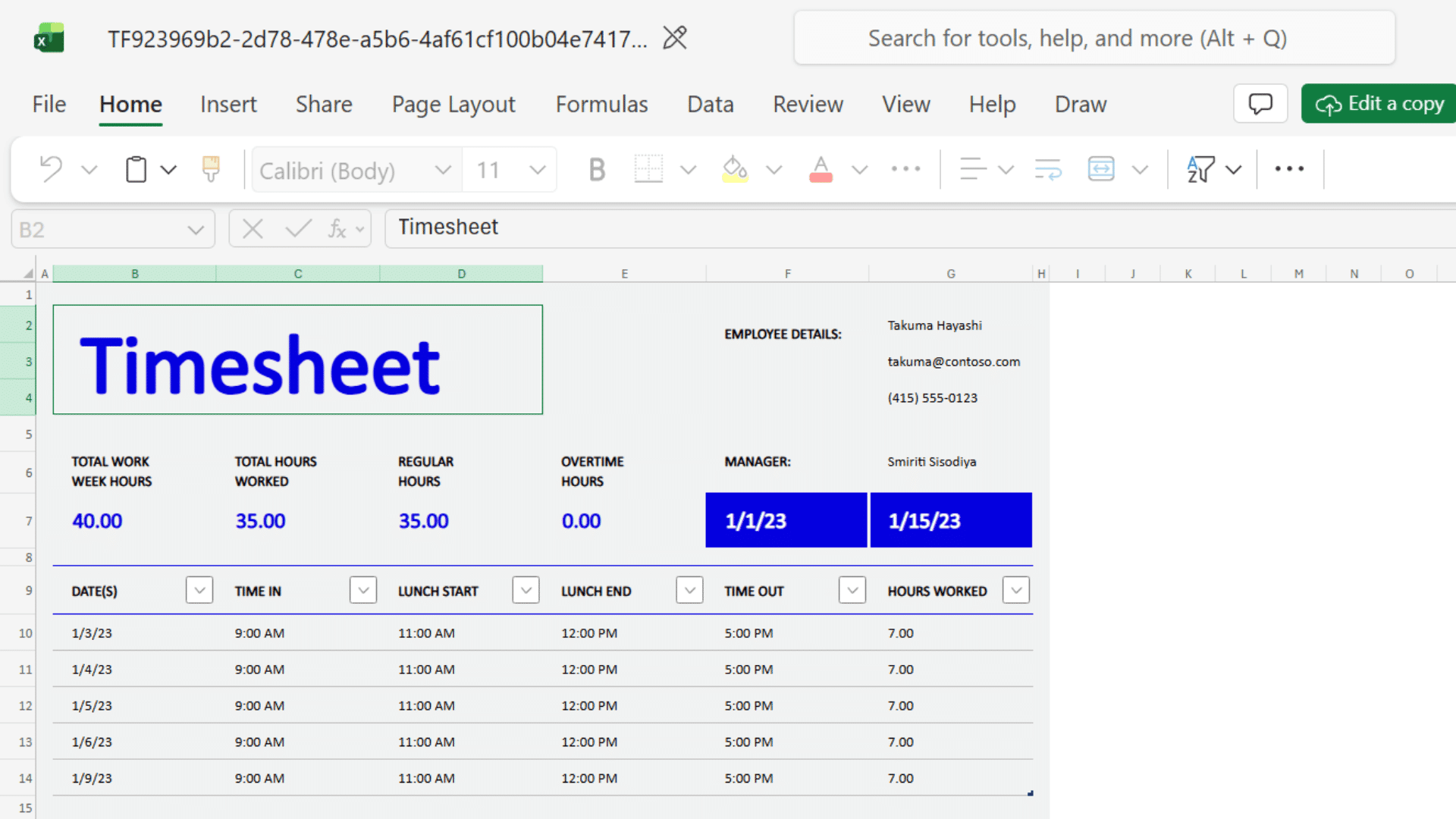
A weekly timesheet template Excel file is one of the most practical options for regular hour tracking.
It gives enough detail for payroll without making the sheet feel too heavy.
A clean weekly layout often includes:
- Rows for Monday to Sunday
- Start and end time for each day
- Lunch or break column
- Daily total
- Weekly total
- Overtime total
- Employee and manager signature
This format works well for teams paid every week. It also helps managers review hours at the end of the week without opening several separate files.
3. Biweekly Timesheet Template Excel
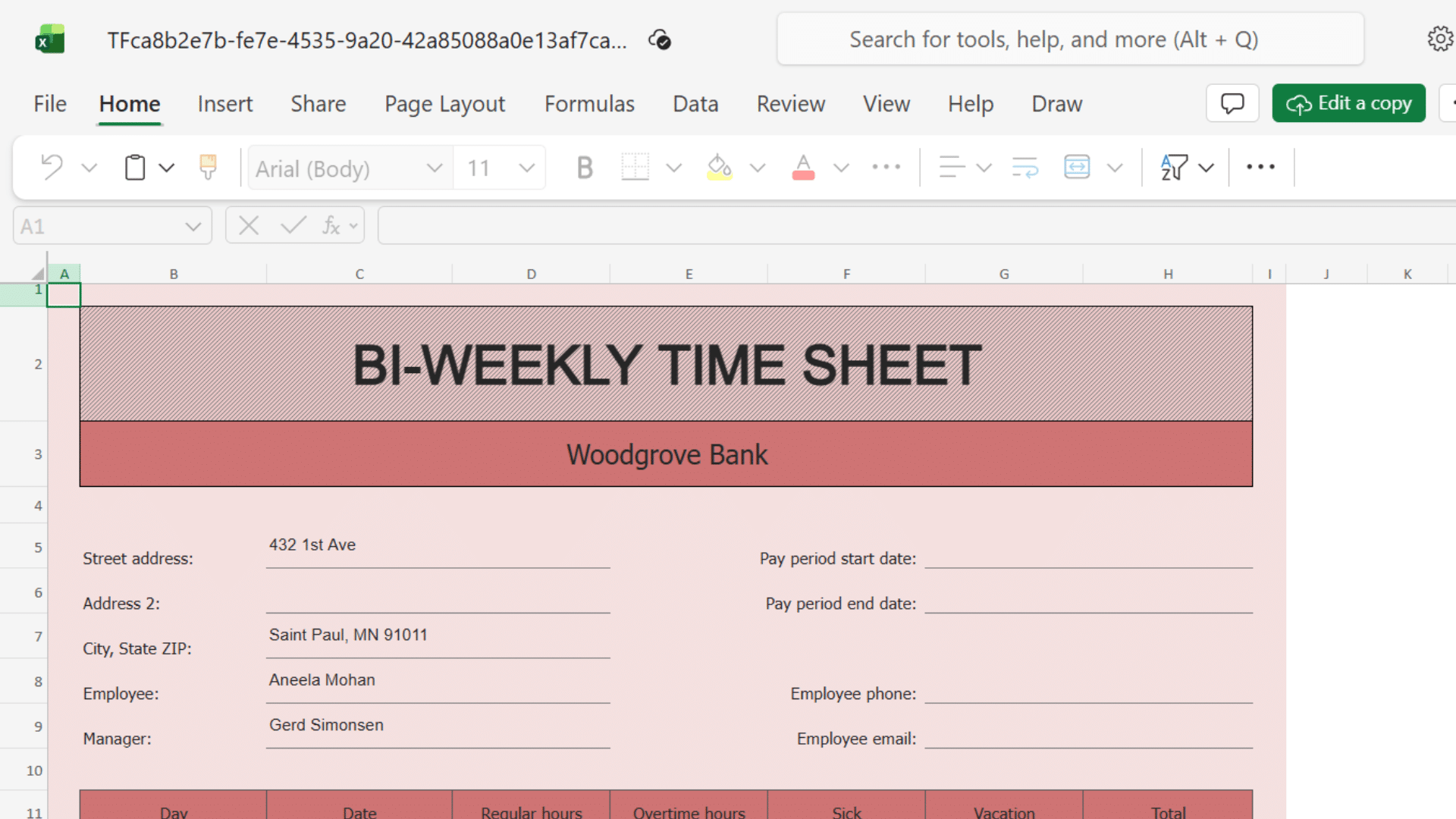
A biweekly timesheet template Excel file is built for two-week pay periods. It keeps both workweeks in one place, which makes payroll review faster and less scattered.
Useful fields include:
- Week 1 daily hours
- Week 2 daily hours
- Total regular hours
- Total overtime
- Paid time off
- Sick leave
- Final payroll total
This format is useful when payroll is processed every two weeks. It cuts down file clutter and gives payroll teams one complete view before hours are approved.
4. Monthly Timesheet Template Excel
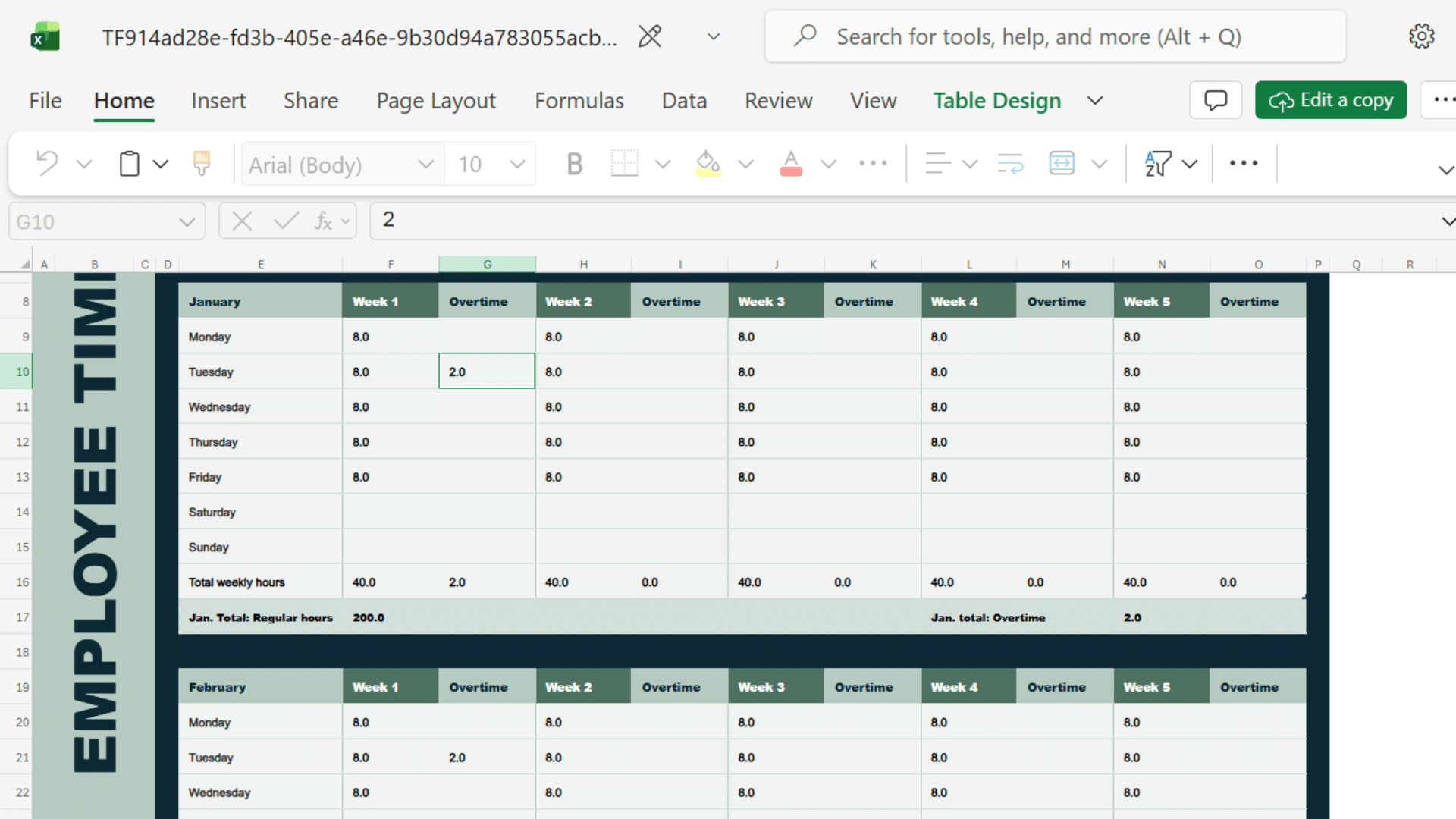
A monthly timesheet template Excel file works best when daily clock-in detail is not the main focus.
It gives a longer view of attendance, work hours, leave, and project time.
A monthly format often includes:
- Date column for the full month
- Work hours per day
- Leave or holiday notes
- Project or task column
- Total monthly hours
- Approval section
This layout is useful for salaried teams, consultants, contractors, and long-term projects.
It is good for recordkeeping, but it may not be the fastest choice for teams that need quick payroll checks each week.
5. Project Timesheet Template Excel
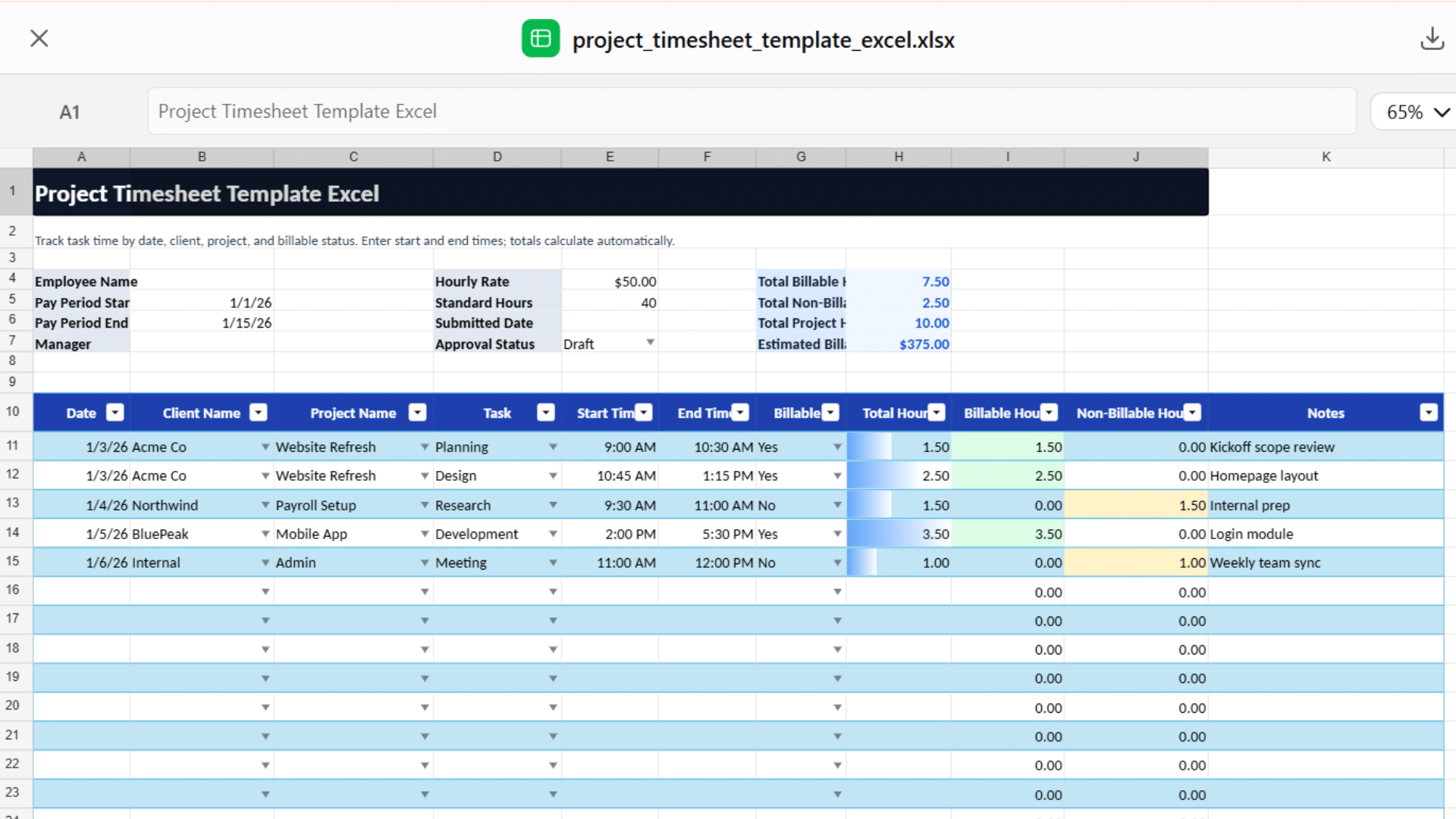
A project timesheet template Excel file tracks time by task, client, or project. It is useful when hours need to be matched with billing, budgets, or planned work.
Common columns include:
- Date
- Client name
- Project name
- Task
- Start time
- End time
- Billable hours
- Non-billable hours
- Notes
This format is often used by freelancers, agencies, consultants, developers, designers, and legal teams.
It makes time records more useful because each hour is tied to a clear piece of work.
6. Employee Timesheet Template Excel
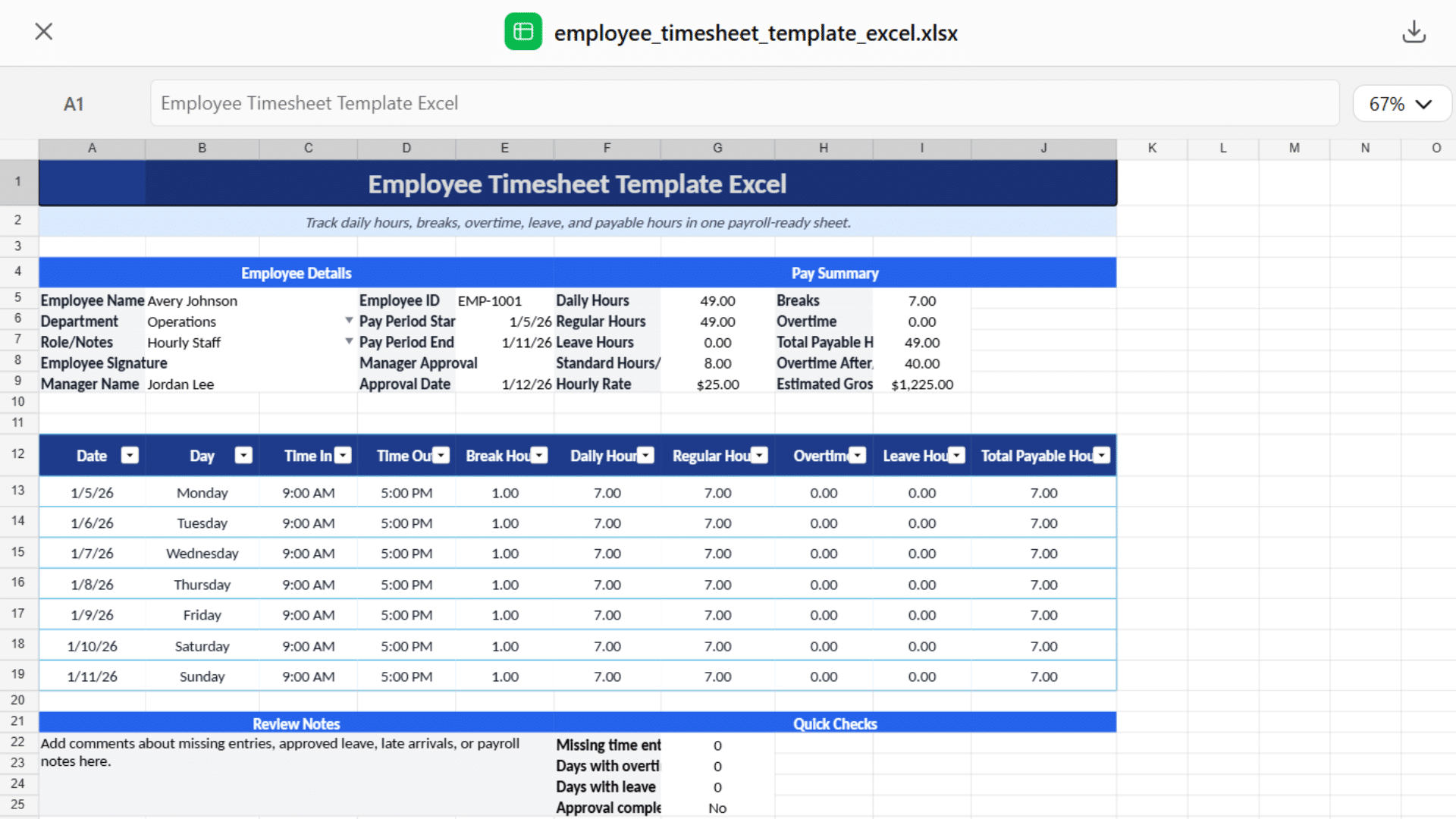
An employee timesheet template Excel file focuses on payroll, attendance, and approval. It should be simple enough for staff to fill in correctly without extra instructions.
Must-have fields include:
- Employee name
- Employee ID
- Department
- Pay period
- Daily hours
- Breaks
- Overtime
- Leave hours
- Total payable hours
- Employee signature
- Manager approval
This format works best when one file is used for each employee or each pay period. It keeps payroll details clean and gives managers a clear record before final approval.
Basic Excel Timesheet Formulas
Excel formulas enhance a timesheet by automatically computing hours, breaks, overtime, and pay, reducing manual effort and ensuring payroll totals remain accurate.
| Need | Formula Concept |
| Total hours worked | End time minus start time minus break time |
| Weekly total | Add all daily totals |
| Overtime | Count hours above the weekly limit |
| Decimal hours | Convert time into payroll-ready numbers |
| Pay amount | Multiply total hours by hourly rate |
A daily formula handles the core work hours. A weekly formula pulls those daily totals into one final number.
Overtime and pay formulas help prepare the sheet for review. Test every formula with sample entries before using the file for payroll.
Common Mistakes to Avoid in Excel Timesheets
A timesheet may look simple, but small errors can quietly turn into payroll issues. Avoid these mistakes before the sheet reaches approval:
- Mixing time formats in the same column: Use one format across the sheet so formulas read every entry correctly.
- Leaving break time out of formulas: Deduct breaks properly to keep paid hours accurate.
- Using one file for too many pay periods: Keep each pay period separate so old and new entries do not get mixed.
- Letting staff edit formula cells: Protect formula cells to prevent accidental changes to totals.
- Forgetting overtime rules: Add a clear overtime column so extra hours are easy to review.
- Not adding approval fields: Include employee and manager sign-off areas for a clean record.
- Using unclear labels: Name each column clearly so users know exactly what to enter.
- Saving multiple versions without a naming system: Use a set file name format to avoid confusion during payroll.
A good Excel timesheet should still be easy to read weeks later. Anyone checking it should be able to understand the hours, totals, and approvals without having to guess.
Conclusion
A well-structured Excel timesheet keeps payroll steady and removes guesswork from routine hour tracking. When data is entered cleanly, approvals move faster, and payment cycles stay consistent without extra follow-ups or corrections.
The real difference comes from choosing a format that matches your workflow and keeping entries disciplined across every pay period. Small improvements in setup often prevent larger issues later in payroll review.
Worked with Excel timesheets before? Share what format works best for your team in the comments!
It helps others understand practical setups beyond theory and improves how different teams handle time tracking.
Frequently Asked Questions
Is Google Timesheet Free?
Yes, Google timesheets are completely free to use. You can use Google Sheets to build custom time logs using built-in duration math, or utilize official, ready-to-use timesheet templates.
Which Is Better, Excel or Google Sheets?
Neither is universally better; Google Sheets is the superior choice for real-time collaboration and cloud-based convenience, while Microsoft Excel is the undisputed king for advanced data analysis, complex modeling, and handling massive datasets.
What Is the 50/30/20 Rule in Excel?
The 50/30/20 rule is a popular personal finance strategy that divides your after-tax income into three categories: 50% for Needs, 30% for Wants, and 20% for Savings/Debt.